👤 Profile Management
The Profile Management feature allows users to view, edit, and manage their personal account information within the AOMP. This comprehensive profile system enables users to customize their account settings, update personal information, and maintain security through password management.
Overview
The Profile section provides a centralized location for managing your user account, including personal information, system preferences, and security settings. The interface is organized into three main sections: Profile View, Edit Profile, and Change Password.
Accessing Your Profile
Profile Menu Access
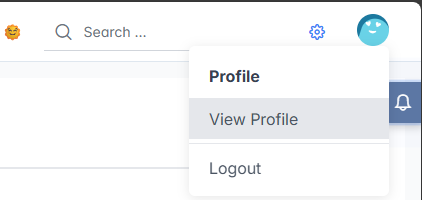
- Profile Menu: Click on your user avatar in the top-right corner of the application
- View Profile: Select "View Profile" from the dropdown menu to access your profile page
- Quick Logout: Use the "Logout" option to securely exit the system
Profile Sections
Profile Overview
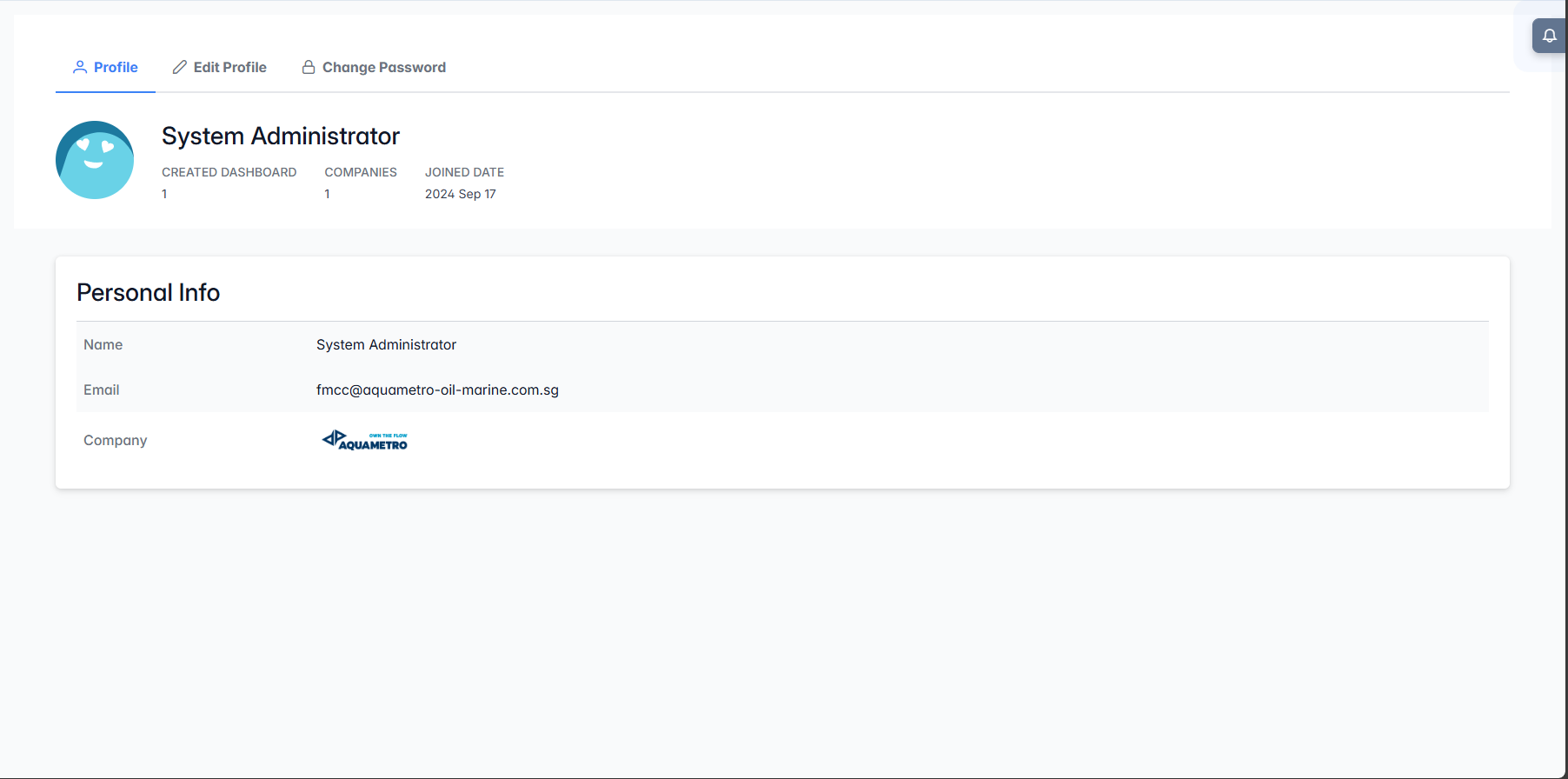
The Profile tab displays your account summary and statistics:
User Information Display:
- Profile Avatar: Visual representation of your user account
- Display Name: Your display name as shown throughout the system
- Account Statistics:
- Created Dashboard: Number of dashboards you have created (displays count)
- Companies: Number of companies associated with your account
- Joined Date: Date when your account was created (YYYY MMM DD format)
Personal Information Section:
- Name: Your registered name
- Email: Your registered email address for system communications
- Company: Your associated company with logo display
Edit Profile
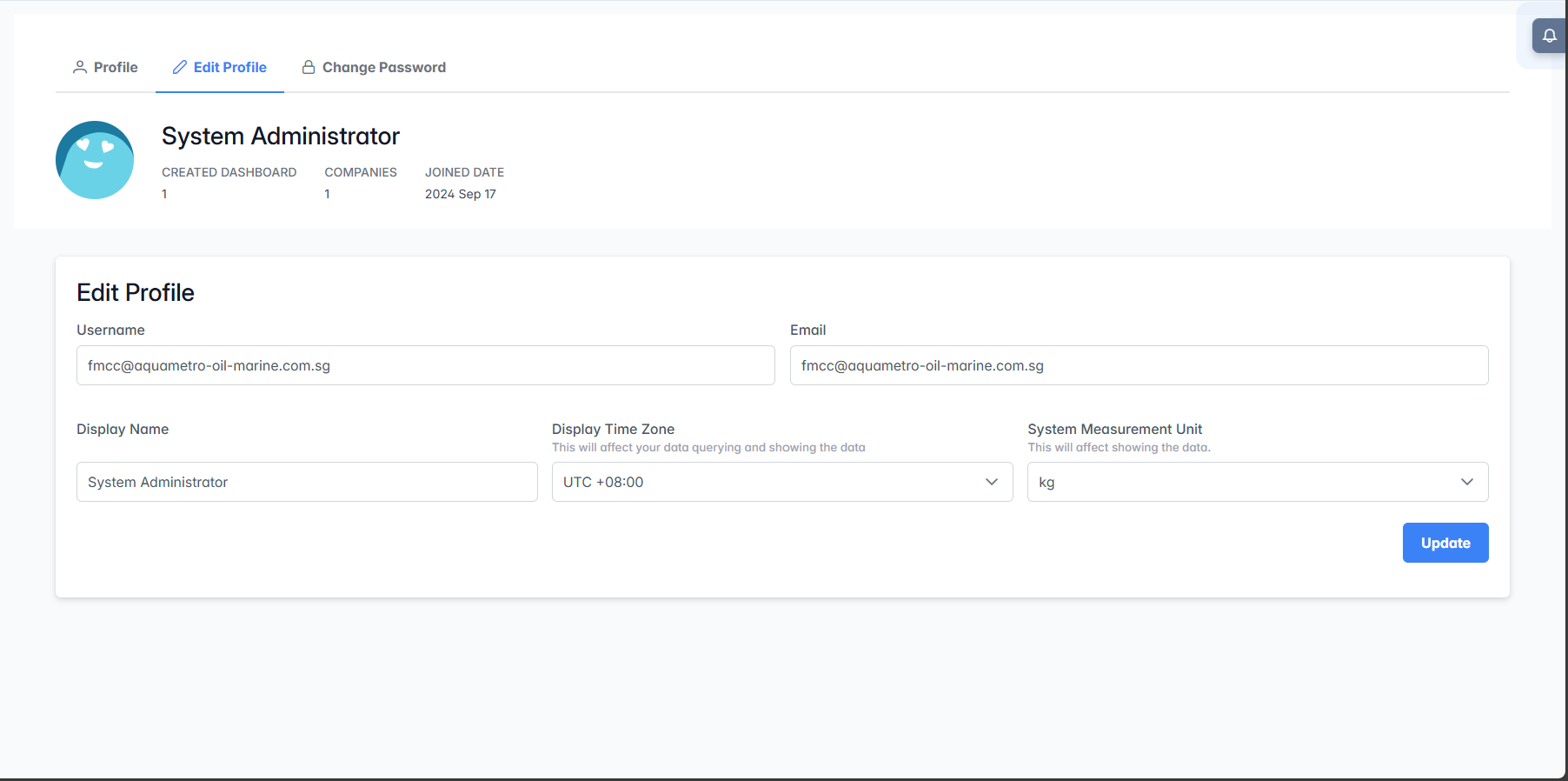
The Edit Profile tab allows you to modify your account information:
Basic Information Fields:
- Username: Your system login identifier (usually your email address)
- Email: Your contact email address for notifications and communications
- Display Name: Your name as it appears throughout the application
System Preferences:
- Display Time Zone: Configure how dates and times are displayed
- Select from available time zones (e.g., "UTC +08:00")
- This affects data querying and display throughout the system
- System Measurement Unit: Choose your preferred measurement units
- Select units for displaying data (e.g., "kg" for kilograms, "ℓ" for liters, "US Gal" for US gallons)
- This affects how measurement data is presented in reports and dashboards
- Select units for displaying data (e.g., "kg" for kilograms, "ℓ" for liters, "US Gal" for US gallons)
Save Changes:
- Update Button: Click "Update" to save all changes to your profile
- Changes are applied immediately upon successful update
Change Password
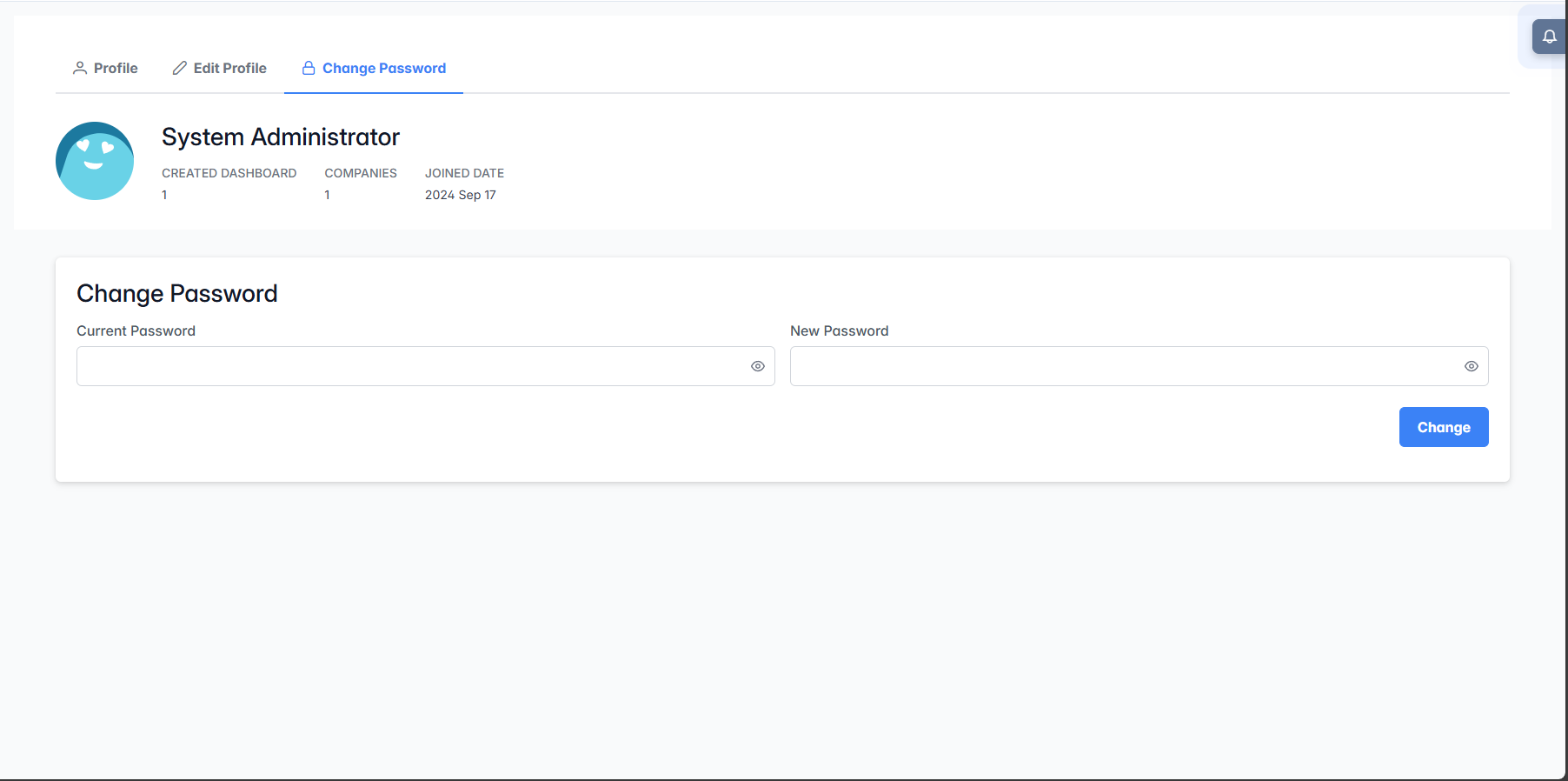
The Change Password tab provides secure password management:
Password Fields:
- Current Password: Enter your existing password for verification
- New Password: Enter your desired new password
- Password Visibility: Use the eye icon (👁️) to toggle password visibility while typing
Security Features:
- Password verification ensures only authorized users can change passwords
- New passwords must meet system security requirements
- Change Button: Click "Change" to apply the new password
The Profile Page provides a centralized hub for users to view, edit, and securely manage their personal account information within the AOM system.